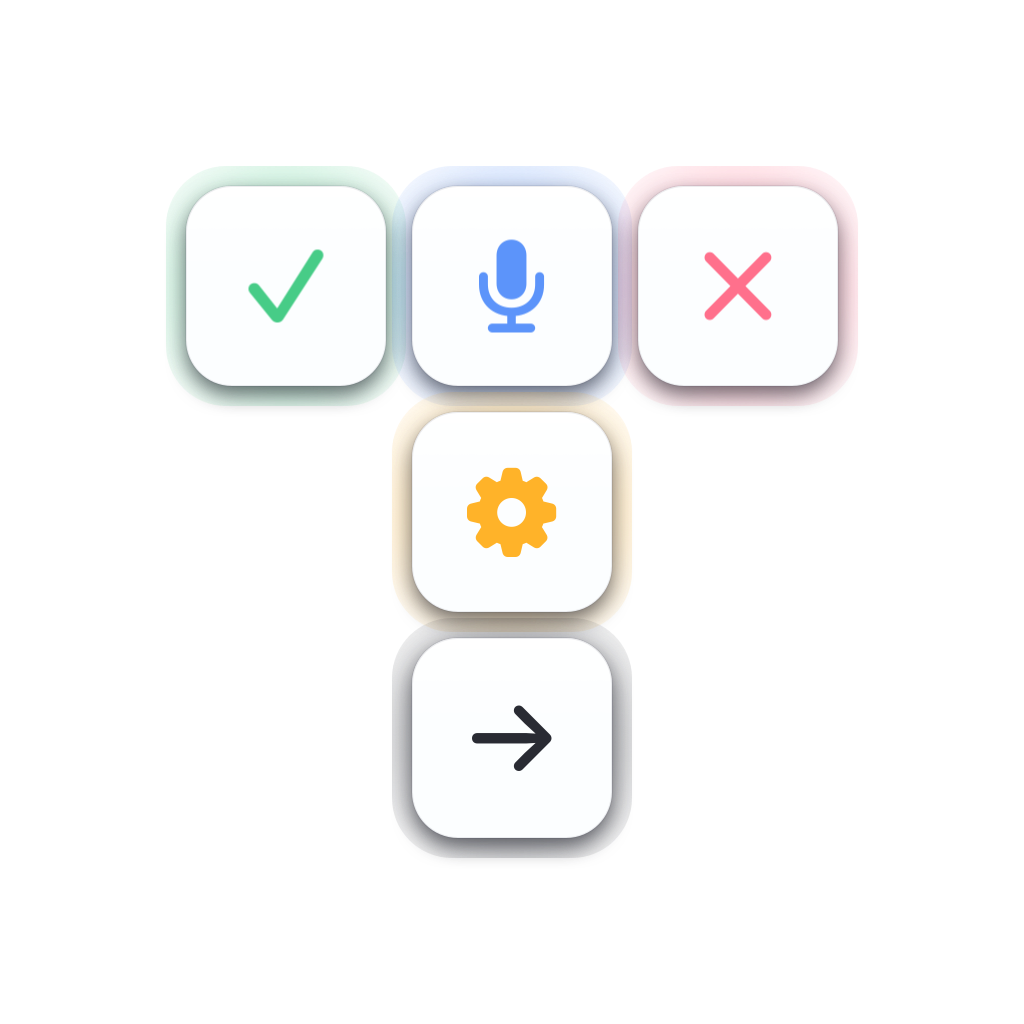
TINY
Trusted Interface for Your agents.
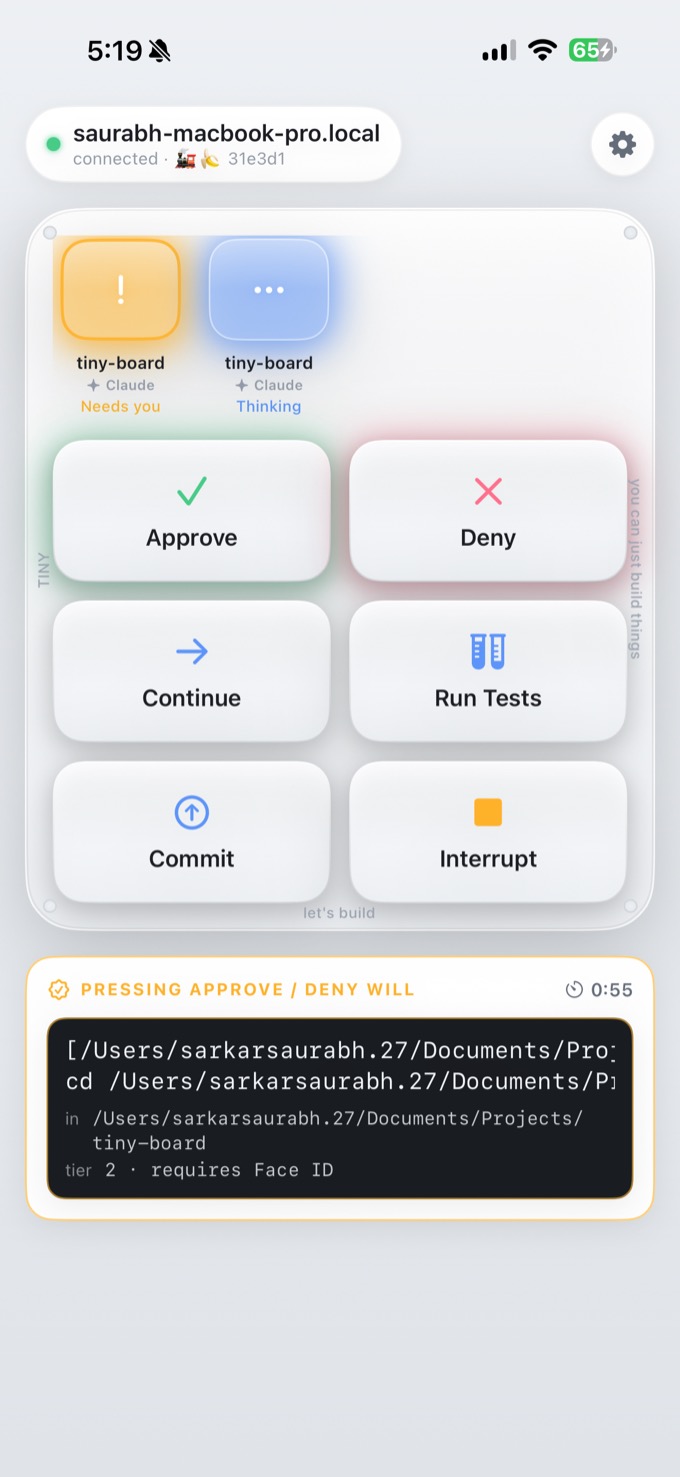
When Claude Code on your Mac wants to run something, it lights up on your phone — the exact command, sealed and signed-for with Face ID. Deny is always one tap. On your Wi-Fi, end-to-end encrypted, nothing in the cloud.
Trust the seal, not the story.
Every approval shows the ground-truth command your Mac will run — in monospace, byte-for-byte — kept separate from the agent's own prose.
git push origin main
in   /Users/you/tiny-board
changes  3 files  +47  −12
tier 2 · requires Face ID
Your whole fleet, in your hand.
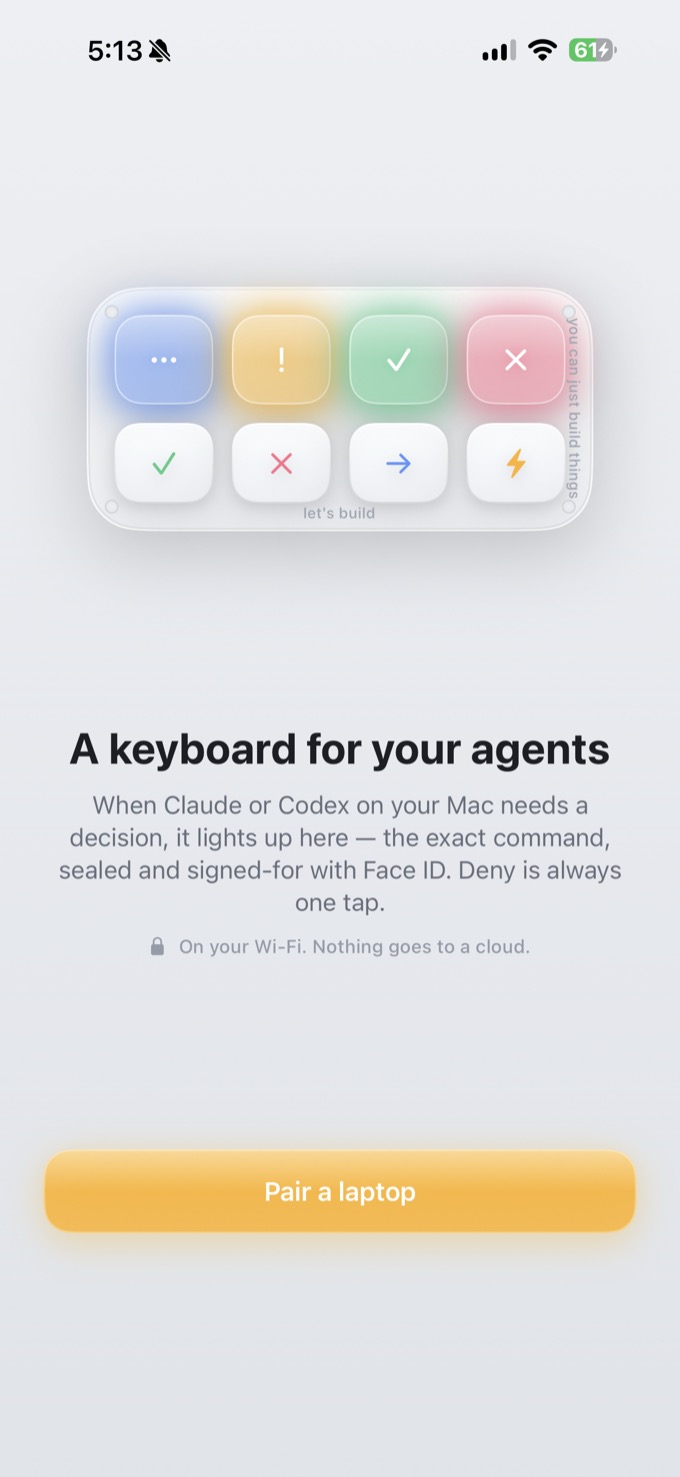
Every agent is a glowing key. Approve or deny the exact command — the deck lights up the moment something needs you.
How It Works
Three steps, once — then it just runs in your menu bar.
Pair
Open TINY on your Mac and phone, scan the code, and confirm three emoji on both screens. Keys are pinned to your Secure Enclave — no account, no cloud.
Your agents light up
Every Claude, Codex, or Gemini session on your Mac appears as a key — glowing with what it's doing right now: thinking, working, done, or needs you.
Approve with Face ID
When an agent wants to act, the sealed command lands on your phone. Approve signs it in silicon behind Face ID; the terminal continues. Deny is one tap, always.
Features
A hardware macropad for your agents — rendered in glass and light.
Face ID, in silicon
Approvals are signed by a Secure-Enclave key bound to your face. A stolen phone can't approve; re-enrolling Face ID invalidates the key by design.
Seal vs. bubble
You approve the exact bytes your Mac will run, shown verbatim — never the agent's persuasive summary. The two are always visually separate.
Never bricks your terminal
Phone asleep or gateway down? TINY falls back to your normal terminal prompt in seconds. It never blocks, and never silently approves.
Works with your agents
Claude Code today, with Gemini in beta — each session branded and gated through its own hook. Codex and Kiro are on the roadmap. Agent-agnostic by design; one phone, every agent.
Many laptops at once
Pair several Macs and see every machine's agents on one grid, tagged by laptop. A built-in switcher focuses one at a time.
RGB status at a glance
Each agent is a glowing key — white idle, blue thinking, green done, amber needs-you, red error. Your fleet's state, felt not read.
On your Wi-Fi, private
Phone and Mac talk directly over an end-to-end encrypted channel, pinned at pairing. No account, no server, no analytics.
Lives in your menu bar
The Mac app runs the gateway quietly in the background and connects your agents with one click — you never touch a terminal.
Open source (MIT)
The code that holds keys and mints approvals is open — the credible "don't trust us, read it" guarantee. Add your own buttons; contribute new ones.
Use Cases
Ship from the couch
Let an agent run tests, commit, and push while you're away from the desk — approving each real action from your phone.
Run a fleet
Five agents across three Macs, one grid. See who needs you, and act — without hunting through terminal windows.
Guardrails for auto mode
Let agents move fast, but keep the dangerous actions — pushes, deletes, deploys — gated behind your face.
Watch what's happening
Even with permissions skipped, the grid still shows every session's live state, so you always know what your agents are doing.
Getting Started
Open source now; the iPhone app arrives on TestFlight soon.
# Clone the repo
$ git clone https://github.com/sarkar-ai-taken/tiny-board

# Open the Mac app — the gateway runs in your menu bar
$ open mac/TINY/TINY.xcodeproj

# Build the iPhone app and run it on your device
$ open ios/TinyBoard/TinyBoard.xcodeproj

# Then: Pair a phone → scan the code → match the emoji → Connect your agents